Connect your AI to GitHub
UniversalBench gives your AI a single connection that reads and writes your GitHub repositories, so it can fetch a file, make a change, and commit it safely. It works with Claude, ChatGPT, Gemini, and any other MCP-compatible AI through one connection.
Connect GitHub in three steps
Create a GitHub token
In GitHub, go to Settings, Developer settings, Personal access tokens, and generate a token with repo access (or a fine-grained token with contents read and write on the repositories you want).
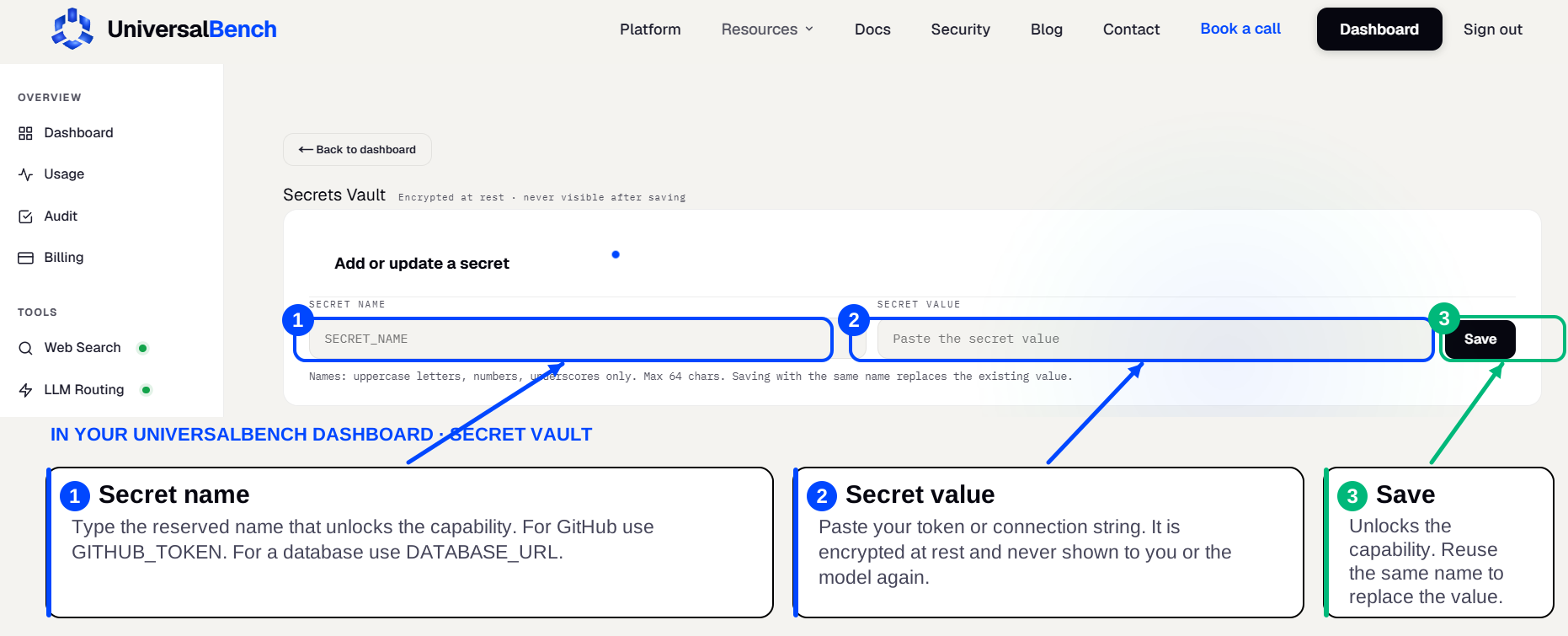
Save it once in the secret vault
Store the token in your UniversalBench secret vault under the name GITHUB_TOKEN. That exact name unlocks the GitHub capability automatically, you never paste it again.
Connect and ask
Add the one MCP URL to your AI and ask in plain language. Your AI reads files, commits validated changes, and keeps a rollback point, all behind that single connection.
What your AI can do
- ✓Read any file in a repo, with its history and the sha needed to write back
- ✓Commit changes that are validated and confirmed to load before they land
- ✓A rollback point is captured automatically on every push
Is there a GitHub MCP server to install?
No separate server to install or host. UniversalBench is the MCP server, and GitHub is one of the things it does for your AI behind a single connection. Save your credential once in the encrypted secret vault under GITHUB_TOKEN and it is used automatically after that.
The same connection also handles reading code, opening fixes, and committing changes from your AI and more, so one setup covers far more than GitHub alone.
Frequently asked questions
How do I connect my AI to GitHub?
First, in GitHub, go to Settings, Developer settings, Personal access tokens, and generate a token with repo access (or a fine-grained token with contents read and write on the repositories you want). Then save it in your UniversalBench secret vault under the name GITHUB_TOKEN, which unlocks the capability automatically. Finally, add the one MCP URL to your AI and ask in plain language.
Where do I put the credential?
In your UniversalBench secret vault, under the name GITHUB_TOKEN. It is encrypted, used automatically by the matching capability, and never shown back to you or sent to the model in plain text.
Does this work with ChatGPT and Gemini?
Yes. UniversalBench connects through one standard MCP link, so it works with Claude, ChatGPT, Gemini, and any MCP-compatible AI. You paste one URL and the capability is there.
