Connect your AI to Gmail
UniversalBench lets your AI read and send Gmail through one connection, using a Google access token you provide, with no server to maintain. It works with Claude, ChatGPT, Gemini, and any other MCP-compatible AI through one connection.
Connect Gmail in three steps
Get a Google access token
Create an OAuth access token that includes the Gmail scope you need (read, send, or both).
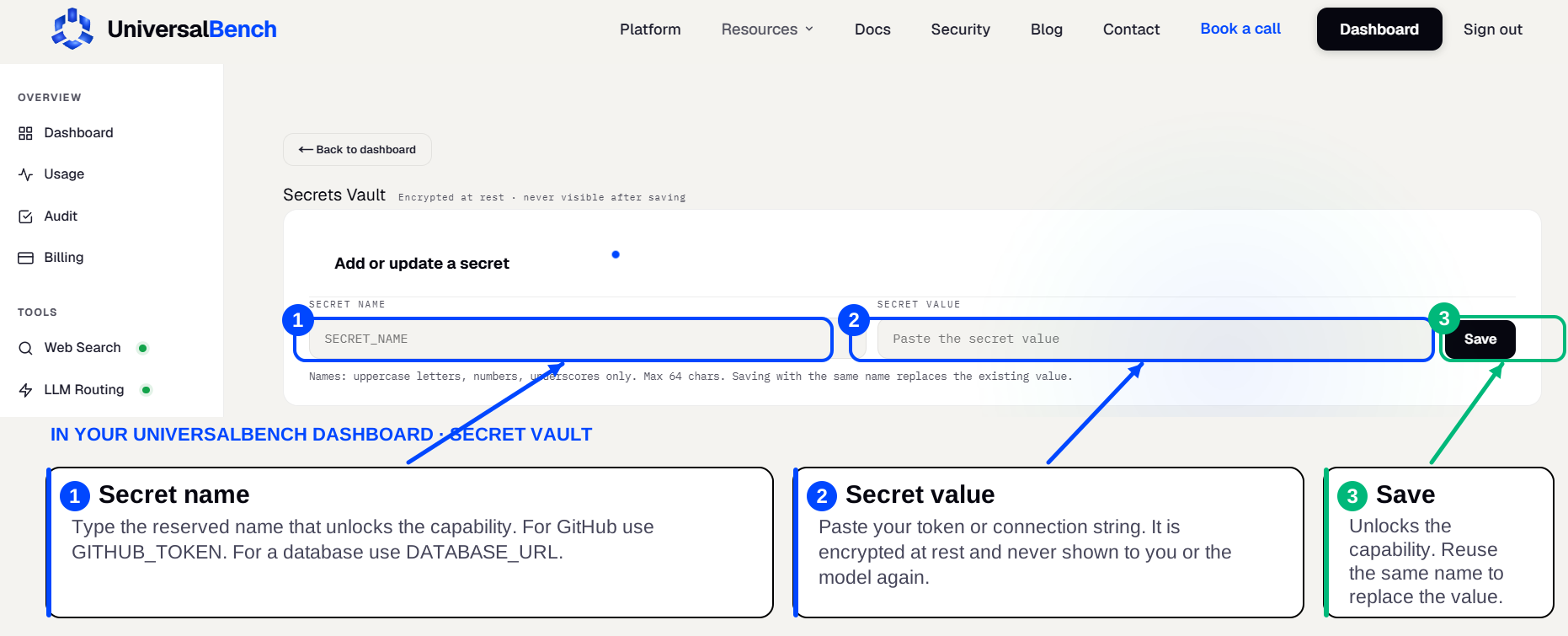
Save it once in the secret vault
Store the token in your UniversalBench secret vault, for example as GOOGLE_TOKEN.
Connect and ask
Your AI calls the Gmail API and references your token as a placeholder in the Authorization header, substituted at call time. It reads and sends, and only the result returns to the chat.
What your AI can do
- ✓Read and send through the Gmail API
- ✓Your access token stays in the encrypted secret vault
- ✓Only the result returns to your AI
Is there a Gmail MCP server to install?
No separate server to install or host. UniversalBench is the MCP server, and Gmail is one of the things it does for your AI behind a single connection. Save your credential once in the encrypted secret vault under GOOGLE_TOKEN and it is used automatically after that.
The same connection also handles reading and sending email from your AI and more, so one setup covers far more than Gmail alone.
Frequently asked questions
How do I connect my AI to Gmail?
First, create an OAuth access token that includes the Gmail scope you need (read, send, or both). Then save it in your UniversalBench secret vault under the name GOOGLE_TOKEN, which unlocks the capability automatically. Finally, add the one MCP URL to your AI and ask in plain language.
Where do I put the credential?
In your UniversalBench secret vault, under the name GOOGLE_TOKEN. It is encrypted, used automatically by the matching capability, and never shown back to you or sent to the model in plain text.
Does this work with ChatGPT and Gemini?
Yes. UniversalBench connects through one standard MCP link, so it works with Claude, ChatGPT, Gemini, and any MCP-compatible AI. You paste one URL and the capability is there.
