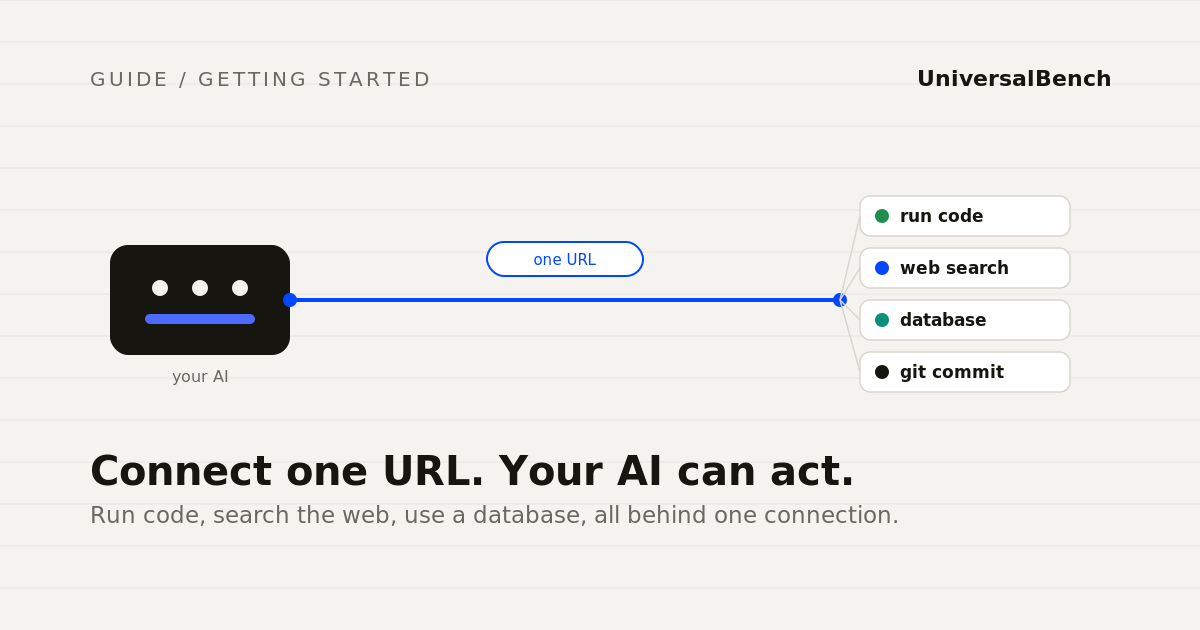
Most AI assistants are brilliant at thinking and stuck at doing. They can describe how to analyse a log file but cannot open it. They can explain a database query but cannot run it. The missing piece is a way to give the model real tools, the ability to run code, search the live web, read and write a database, and commit to a repository, without wiring up and securing all of that infrastructure yourself.
The standard way to add tools to an AI agent is the Model Context Protocol, or MCP. This guide shows the simplest version of it: connect one URL to your AI and it gains a full set of tools that run safely behind that URL. No servers to host, no keys scattered through your prompts. Here is exactly how to do it.
What you need before you start
Three things. An AI client that supports MCP, which includes Claude, ChatGPT, Gemini, and most current agent frameworks. A task you want the agent to actually perform, like analysing data or updating a record. And a tool endpoint to connect, which is the one URL described below. That is the whole list.
Step 1: Get your connection URL
Sign up for a free account, which gives you a personal connection URL in the form universalbench-mcp.penantiaglobal.workers.dev/u/your_key. The first thousand calls a month are free and no card is required, so you can test the whole flow before deciding anything. Keep that URL handy. It is the only piece of configuration you need.
Step 2: Add the URL to your AI client
In your AI client, find where it manages connectors or MCP servers. In Claude this is the connectors setting, in the Anthropic API it is the mcp_servers parameter of a message, and other clients have an equivalent. Paste your connection URL there and save. The client will reach out to the endpoint and discover the tools it offers automatically. You do not list the tools by hand; the connection tells the AI what it can do.
Step 3: Ask the agent to do something real
Now give the agent a task that needs a tool, not just an answer. Ask it to count the errors in a log file, fetch and summarise a live web page, or run a quick calculation in code. Instead of saying it cannot do that, the agent will route the work through the connection, run it, and return the result. The work happens behind the URL, so only the answer comes back into the conversation, not the raw data.
Step 4: Confirm it is working
You will know it connected when the agent does something it could not do before, returning a real result from real execution rather than a description. A good first test is asking it to run a small piece of code and report the output. If the number is correct and specific, the tool is live.
Is it safe to let an AI run code
This is the right question to ask before connecting any tool, and the honest answer is that it depends entirely on what sits below the agent. A good execution layer enforces three things the agent cannot override. It blocks requests to internal networks, so the agent cannot reach private services. It caps spend before each call, so a runaway loop cannot drain your budget. And it validates code before it commits, so nothing broken ships. We wrote about those controls in what MCP security actually takes and the spending side in why AI agent costs spiral. The short version: connect a tool whose safety lives in the platform, not in a prompt you hope the agent follows.
Common questions
Which AI assistants does this work with? Any that support MCP, which today includes Claude, ChatGPT, Gemini, and most agent frameworks. The same single URL works across all of them, so you are not locked to one model.
Do I need to host anything? No. The tools run behind the connection URL. You connect, you do not deploy.
What can the agent actually do once connected? Run code, run shell commands, search the live web, read and write a database with your own credentials, commit to a GitHub repository, and call other models, all through the one connection.
What does it cost to try? The first thousand calls each month are free with no card, which is enough to test every capability before you decide.
A short demo
A walkthrough video showing the full connect flow end to end is coming shortly and will appear here. In the meantime the four steps above are the entire process, and the quickstart in the docs has the exact click by click for each major AI client.
That is the whole idea
AI has the intelligence. What it has lacked is a safe way to act. Connecting one URL turns an assistant that can only describe work into an agent that can do it, run the code, check the result, and hand back the answer, with the guardrails living underneath where the model cannot talk its way past them. Sign up, paste the URL, and ask your agent to do something it could not do five minutes ago.
